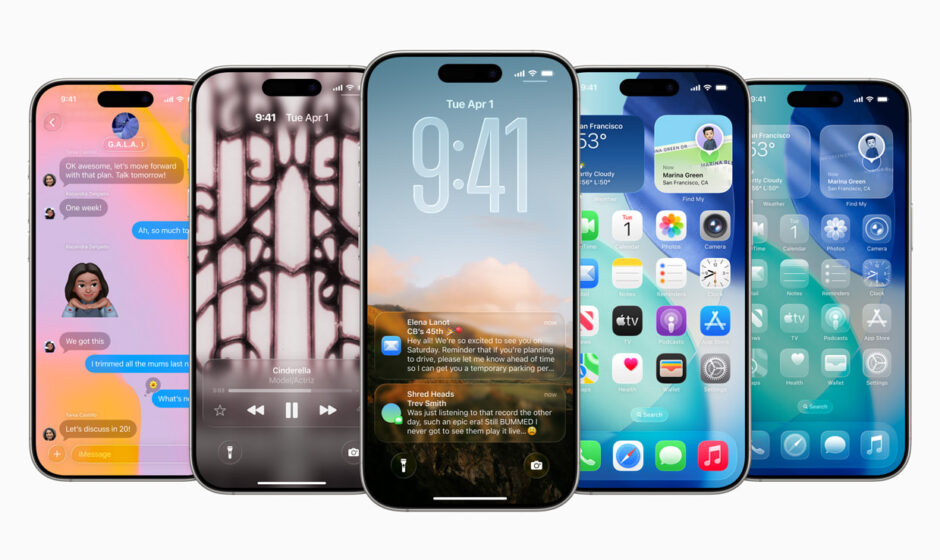

Apple released iOS 26 on September 15, 2025, for iPhone 11 and newer models. It’s one of the biggest updates in years—introducing a new look, smarter tools, and enhanced control over privacy, battery, parenting, and more. Below are the highlights plus tips for getting the most from the update.
Key Changes in iOS 26
1. “Liquid Glass” Redesign
- The UI has had a substantial visual makeover. Called Liquid Glass, the design is more translucent and glass-like, with see-through menus, icons, and widgets.
- You can adjust how transparent things appear via the Accessibility settings or customize icon styles.
2. Smarter Call & Message Handling
- Call Screening is new: Unknown callers must identify themselves or state their purpose before your phone rings. This helps prevent spam or scam calls.
- Messages from unknown senders are separated into a different inbox if you enable that filter.
3. Battery & Power Management Improvements
- New Adaptive Power Mode (for iPhone 15 Pro and newer) tries to learn your usage patterns and reduce power usage by limiting some background activity or dimming the screen when possible.
- You can get notifications when the system makes changes via Adaptive Power, so you know what’s happening and opt out if the trade-offs don’t suit you.
4. Visual Intelligence & Smarter Screenshots
- Screenshots no longer vanish immediately—they stay for a moment so the system can scan for useful info (like dates, events, etc.) and suggest actions.
- If you prefer the old behavior, there’s a setting (“Full-Screen Previews”) to toggle that off.
5. Enhanced Parental Controls
- Kids must ask permission before messaging new contacts.
- The update can automatically blur explicit content (nudity) in FaceTime.
- You can share your child’s age range with apps so they show age-appropriate content.
What This Means for You
These changes aren’t just cosmetic. They aim to improve usability, safety, and how long your phone lasts between charges. However:
- The “Liquid Glass” design may feel unfamiliar or even difficult to read at times, especially with lots of transparency. If that’s a concern, tweak the transparency or switch off some of the more extreme visual effects.
- Some features are hardware-limited. For example, Adaptive Power Mode only works on newer models. So if you have an older supported iPhone, you might not get every enhancement.
Steps to Take First After Updating
- Review Settings
After installing iOS 26, open Settings → Battery to check Adaptive Power Notifications and toggle them as needed. - Adjust Visual Effects
Head to Accessibility → Display & Text Size (or relevant section) to reduce transparency or enable settings that make UI items more readable. - Set Up Call & Message Filters
If unwanted calls/messages bother you, enable Call Screening and filter unknown senders. Be mindful that some legitimate messages (one-time codes, etc.) might end up in filtered sections. - Update Family/Child Accounts
If you have children using the device or with device access, make sure Child Accounts are properly set up in the Family settings to use the new parental control features.
Concerns & What to Watch For
- Battery life might dip initially as the system performs background tasks (indexing, etc.). That tends to settle over time.
- Though Apple has made accommodations for readability, some users report difficulties with contrast or legibility because of the new design. If this bothers you, adjusting settings or waiting for refinement updates is advisable.
- New features sometimes introduce bugs in early days—keep your phone backed up and be ready for minor issues or patches.
Summary
iOS 26 is a bold move from Apple. It’s not just about making things prettier—it’s about smarter features, stronger safety, more control, and better long-term device health. If you have a supported device, the update is worth doing. Just take a few minutes after installing to tweak settings so the new features work best for you.
Frequently Asked Questions
Q: Which iPhone models can get iOS 26?
A: iOS 26 supports iPhone 11 and newer. Older models aren’t eligible.
Q: Can I disable the new Liquid Glass design completely?
A: No—Liquid Glass is system-wide. But you can reduce transparency and adjust visual settings under Accessibility to make interfaces easier to read.
Q: How well does battery life hold up under iOS 26?
A: Battery life may be affected early on due to background tasks. The Adaptive Power Mode helps in newer models to minimize unnecessary usage. Over time, things tend to stabilize.
Q: Will messages from unknown senders or robocalls be completely blocked?
A: They won’t be completely blocked by default. Unknown senders can be filtered to a different inbox. Callers flagged as unknown may need to explain themselves before you pick up. You can adjust these filters.
Q: Will the parental control changes affect existing accounts?
A: Some features require you to have Child Accounts set up in the Family settings. If you haven’t done that yet, you’ll need to configure it to use the newer parental tools.
Q: What if I don’t like some changes after updating?
A: Many features are configurable (transparency, screenshot behavior, filtering). You can toggle them in Settings. If problems persist, waiting for follow-up updates & patches is an option.